How to use our e-service File VAT return
This is a guide on how to use the e-service File VAT return.
Log in to the e-service
How to log in to the e-service
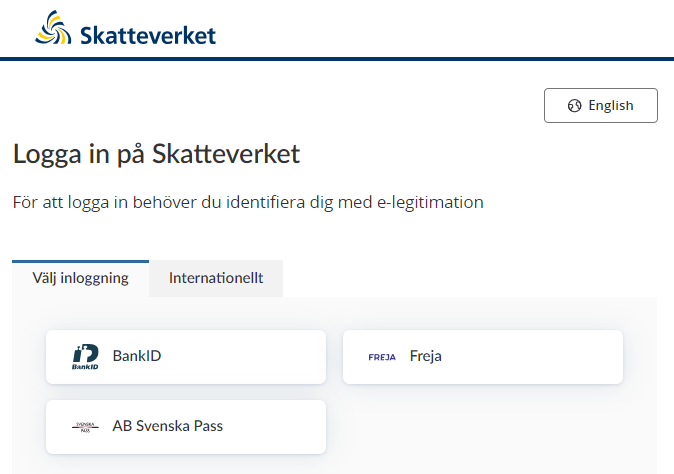
When you have selected the e-service “Lämna momsdeklaration” (“File VAT return”), a login page will open. It gives a list of the different eIDs you can use to log in. In the upper part of the view you can change the language to English by clicking the button ”English”. By choosing ”International” you can view a list of international eIDs. Please note that you can not use foreign eIDs to log in to the e-service “Lämna momsdeklaration” (“File VAT return”). Select the login mode that suits you best by clicking it, and then proceed to identify yourself.
Select the company you wish to represent
When you have identified yourself with your eID, a page will open where you choose which company you represent.
Overview page for reporting VAT
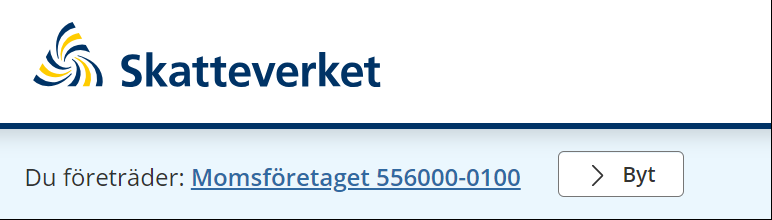
When you have chosen the company you represent, the overview page for reporting VAT will open, “Momsdeklaration” (“VAT return”).
At the top of the page you can see the company you represent.
If you represent more than one company, you can change the one shown by clicking “Byt” (“Change”).
You can now select the following services that have instructions in English:
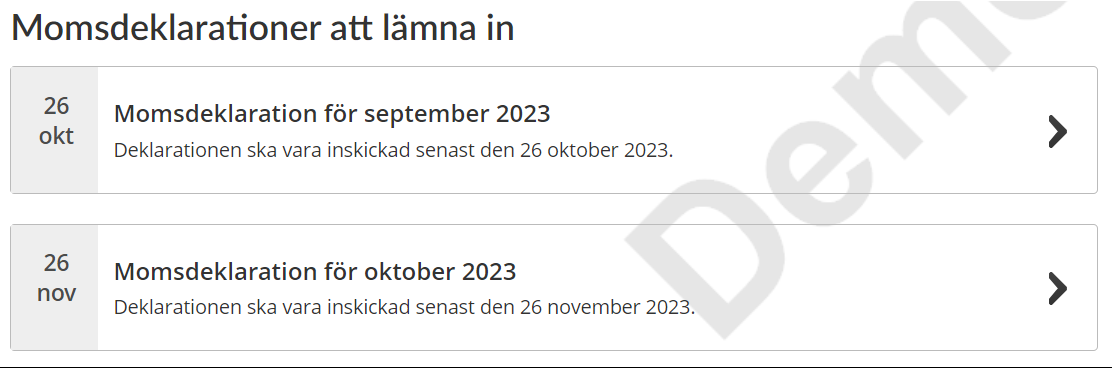
- ”Momsdeklarationer att lämna in” (”VAT returns to file”):
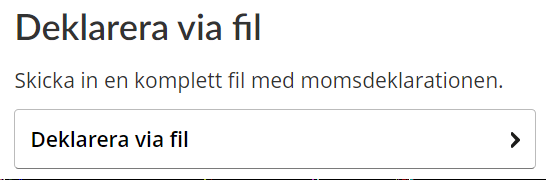
- ”Deklarera via fil” (“File a VAT return via file transfer”):
- ”Se och rätta inlämnade momsdeklarationer” (”View and correct filed VAT returns”):
Momsuppgifter (“VAT details”)
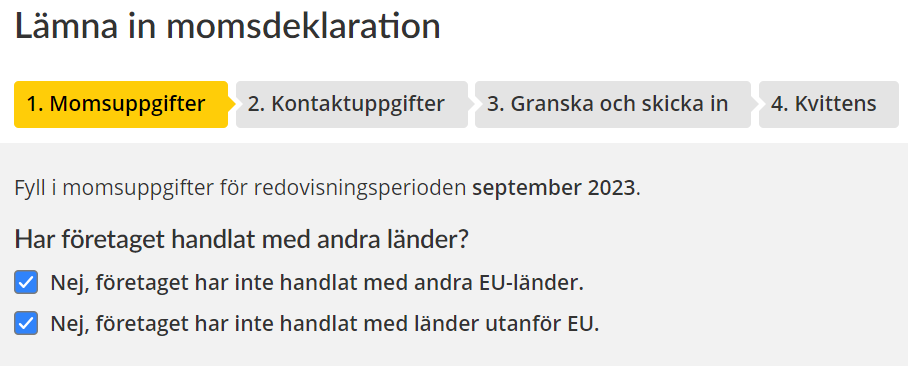
In this section you fill in details for the selected reporting period.
- Did the company trade with other countries during the reporting period?
- Click to remove the tick in the first box if the company traded with other EU countries.
- Click to remove the tick in the second box if the company traded with countries outside the EU.
- Fill in all the amounts that have to be reported for the selected reporting period.
The link below has explanations of the details that must be reported under each heading and in each box.
- In box 48 you fill in your total deductible input VAT (VAT you have paid on purchases). If you have previously made deductions for VAT that you have to repay, you instead select “Tidigare avdragen moms att betala tillbaka” (“Previously deducted VAT to repay”) and fill in the amount in box 48.

- Click “Nästa” (“Next”) if you want to proceed to the next step in the service. You can also cancel what you have done by clicking “Avbryt”, or save it by clicking “Spara” (if you want to save what you have done and return later).

No VAT to report?
You have to file a VAT return even if you don’t have anything to report.
- Click “Deklarera noll” (“Report zero VAT”) at the top right of the page.
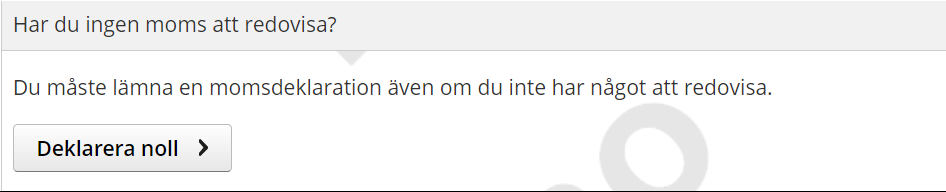
- You will now be taken straight to section 3, “Granska och skicka in” (“Review and submit”) (see below).
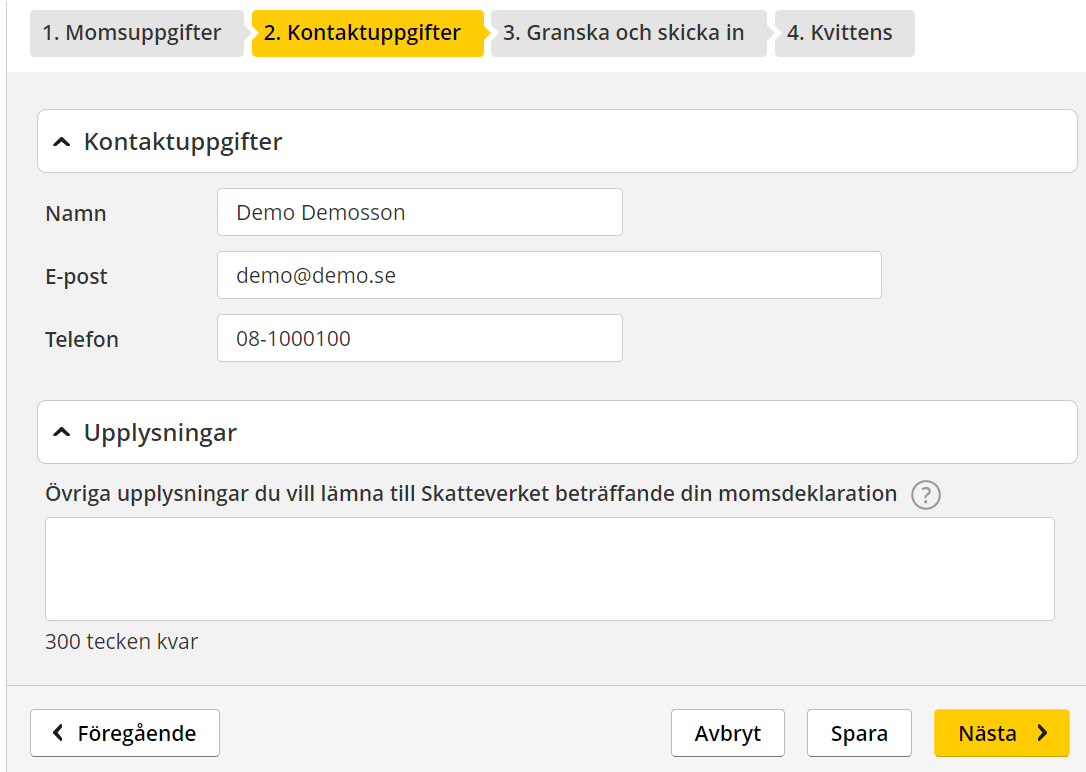
Kontaktuppgifter (“Contact details”)
- Check that the contact details are correct.
- Correct any errors you find.
- Click “Upplysningar” (“Additional information”) if you want to provide the Swedish Tax Agency with additional details about your VAT return.
- Enter the information you want to provide. There is a 300-character limit.
- Click “Nästa” to proceed to the next step in the service. You can also cancel what you have done by clicking “Avbryt”, or save it by clicking “Spara” (if you want to save what you have done and return later). If you want go back to the previous page, click “Föregående”.
Granska och skicka in (“Review and submit”)
- Check that the information you have provided in each field is correct.
- If you need to change any item of information, click the button “Föregående” (“Previous”) and you will be taken back to section 1, “Momsuppgifter” (“VAT details”). Correct the item that was incorrect and click “Nästa” (“Next”) twice, to take you back to section 3, “Granska och skicka in” (“Review and submit”).
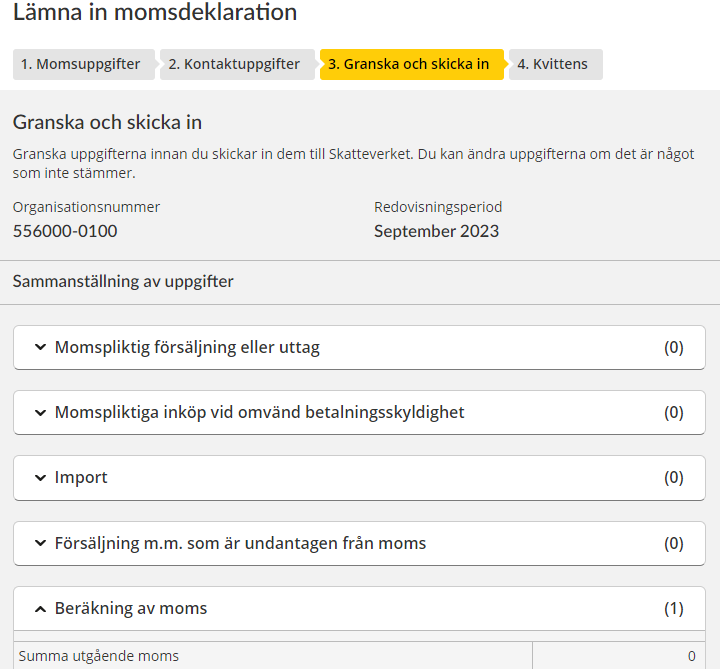
- Once all the information is correct, tick the box that says “Jag har granskat att uppgifterna stämmer” (“I have checked that the information provided is correct”).
- Click “Skriv under och skicka in” (“Sign and submit”) to submit your VAT return. You can also open previous pages in the service by clicking “Föregående”, cancel by clicking “Avbryt”or save information by clicking “Spara”. If you want to go back to the previous section , click “Föregående”.
Note that the VAT return will not be submitted until you click the button to sign and submit.

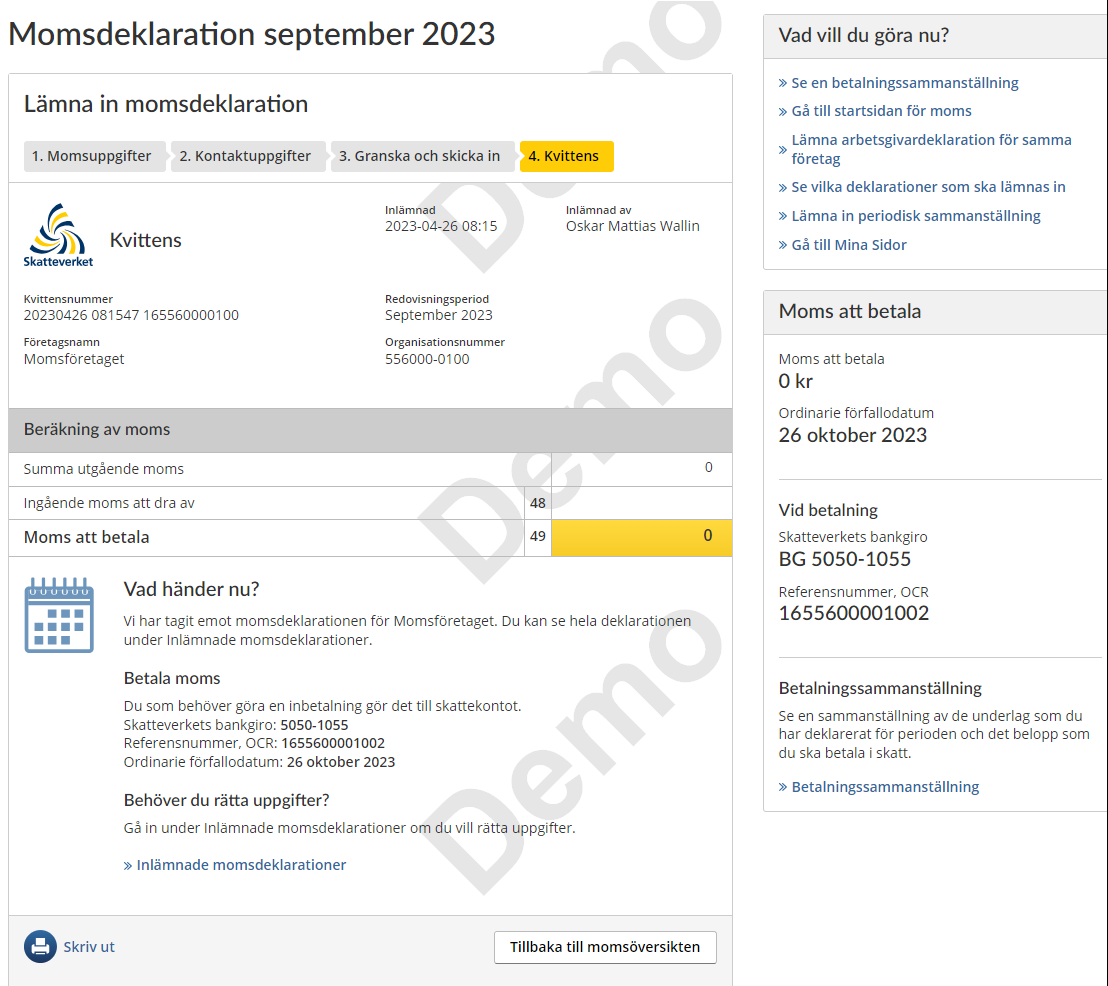
Kvittens ("Receipt")
This page shows you the receipt confirming that you have filed a VAT return for the selected reporting period. You have received a receipt number, “Kvittensnummer”.
You can see here how much VAT you have to pay. There is also information about which bank giro account you have to pay it to, which reference number (OCR) to specify when you make the payment, and the payment deadline for the VAT you owe.
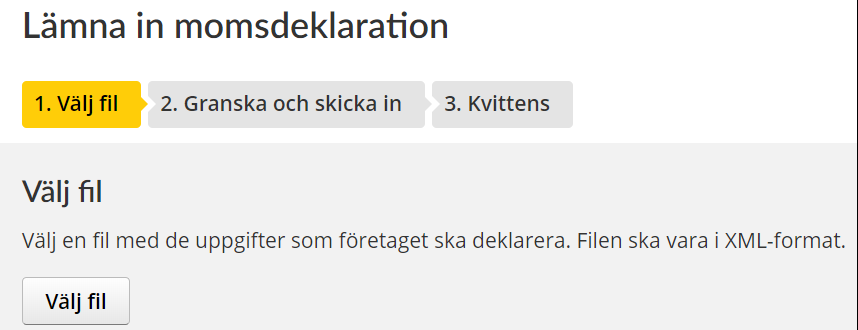
Välj fil ("Select file")
- Select a file containing the information the company has to report by clicking “Välj fil” (“Select file”). The file has to be in the XML format.
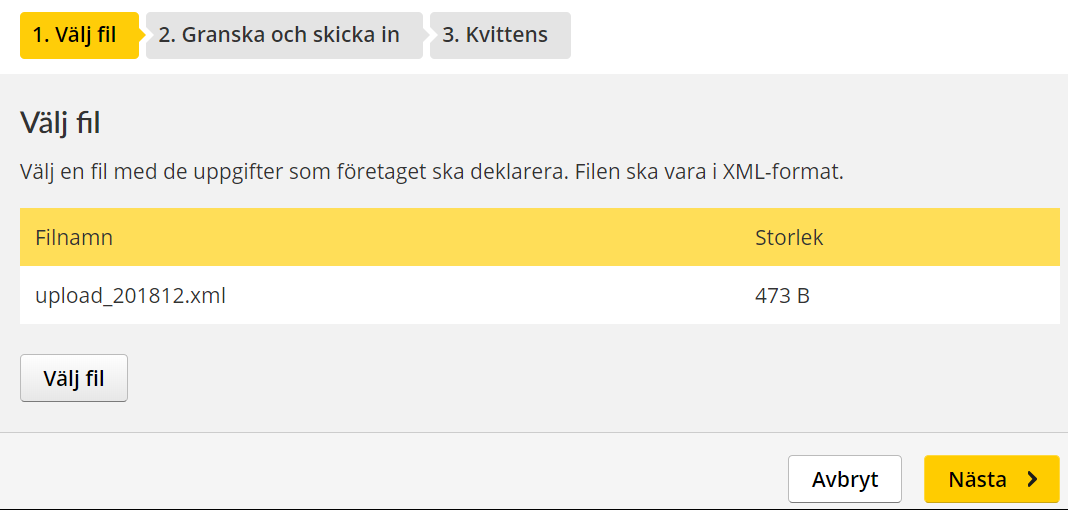
- Select “Nästa” if you want to proceed or “Avbryt” if you want to cancel.
Granska och skicka in ("Review and submit")
- Review the information before you submit it to the Swedish Tax Agency.
- If something is incorrect you can make changes by clicking the link “Rätta uppgifterna manuellt” (“Correct information manually”).

- If all the information is correct, tick the box saying “Jag har granskat att uppgifterna stämmer” (“I have checked that the information provided is correct”).
- Click “Skriv under och skicka in” (“Sign and submit”) to submit your VAT return. You can also open previous pages in the service by clicking “Föregående”, cancel by clicking “Avbryt” or save information by clicking “Spara”.
Note that the VAT return will not be submitted until you click the button to sign and submit.

Kvittens (“Receipt”)
This page shows you the receipt confirming that you have filed a VAT return for the selected reporting period. You have received a receipt number, “Kvittensnummer”.
You can see here how much VAT you have to pay. There is also information about which bank giro account you have to pay it to, which reference number (OCR) to specify when you make the payment, and the payment deadline for the VAT you owe.
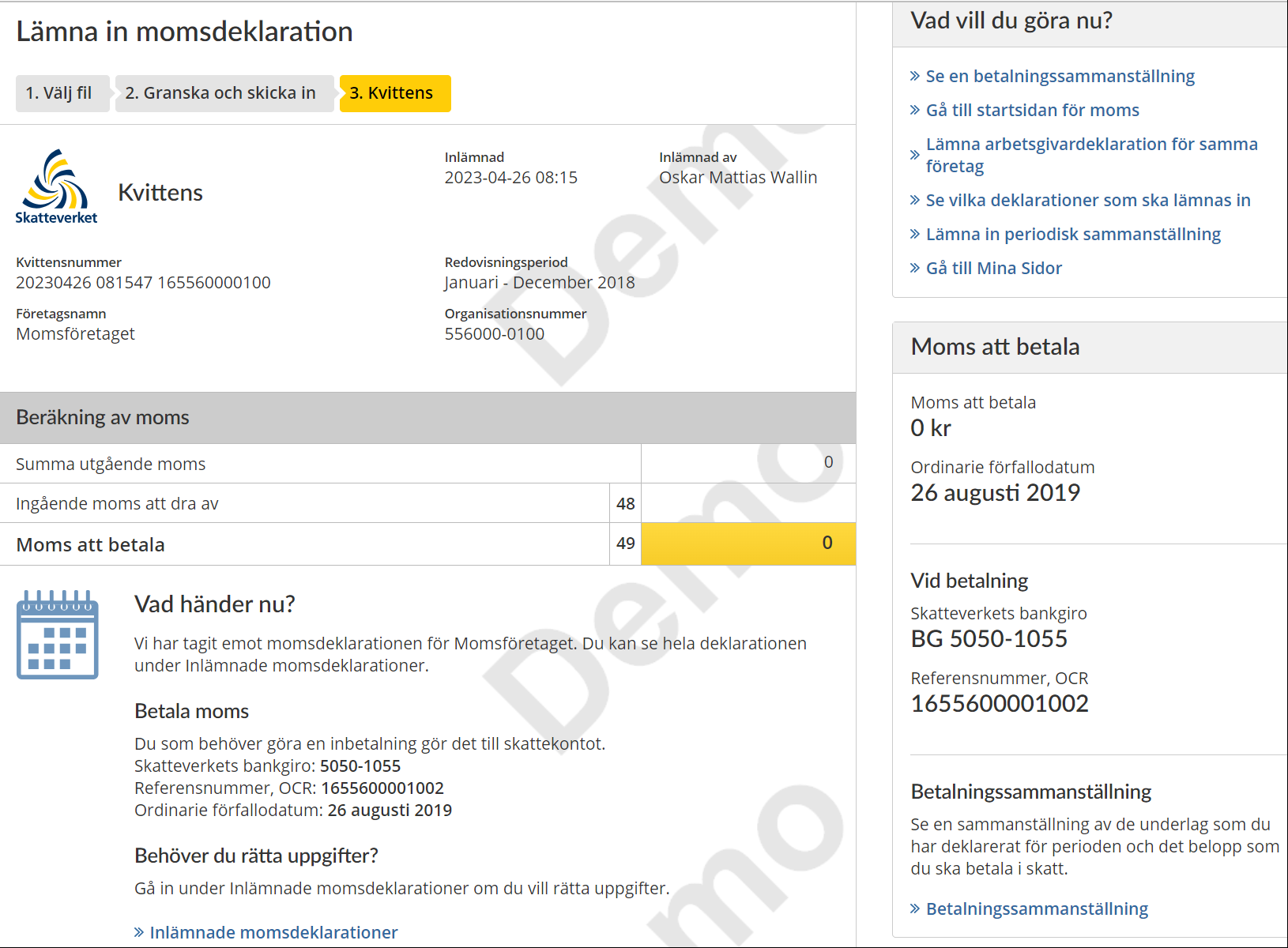
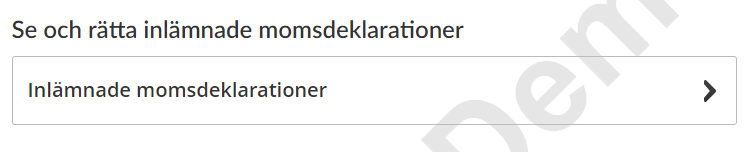
- Click “Inlämnade momsdeklarationer” (“Submitted VAT returns”).
- Select the reporting period for the VAT return you want to correct.
- Click “Visa aktuella uppgifter” (“Show current information”).
- A summary of the information you provided in the selected VAT return will be shown.
- Click “Rätta momsdeklaration” (“Correct VAT return”) at the bottom right of the summary.
Momsuppgifter (“VAT details”)
- Fill in the information you want to change or add.
- Click “Nästa” if you want to proceed to the next step in the service. You can also cancel what you have done by clicking “Avbryt”, or save it by clicking “Spara” (if you want to save what you have done and return later).
Kontaktuppgifter (“Contact details”)
- The contact details page has your contact details and a field for additional information (“Upplysningar”) in the event that you want to provide other information about your VAT return.
- Click “Nästa” if you want to proceed to the next step in the service. You can also cancel what you have done by clicking “Avbryt”, or save it by clicking “Spara” (if you want to save what you have done and return later).
Granska och skicka in (“Review and submit”)
- Check that the information you have provided in each field is correct.
- If you need to change any item of information, click the button “Föregående” and you will be taken back to section 1, “Momsuppgifter” (“VAT details”). Correct the item that was incorrect and click “Nästa” (“Next”) twice, to take you back to section 3, “Granska och skicka in” (“Review and submit”).
- If all the information is correct, tick the box saying “Jag har granskat att uppgifterna stämmer” (“I have checked that the information provided is correct”).
- Click “Skriv under och skicka in” (“Sign and submit”) to submit your VAT return. You can also open previous pages in the service by clicking “Föregående”, cancel by clicking “Avbryt” or save information by clicking “Spara”. Note that the VAT return will not be submitted until you click the button to sign and submit.
Kvittens (“Receipt”)
This page shows you the receipt confirming that you have filed a VAT return for the selected reporting period. You have received a receipt number, “Kvittensnummer”.
You can see here how much VAT you have to pay. There is also information about which bank giro account you have to pay it to, which reference number (OCR) to specify when you make the payment, and the payment deadline for the VAT you owe.
Logging out
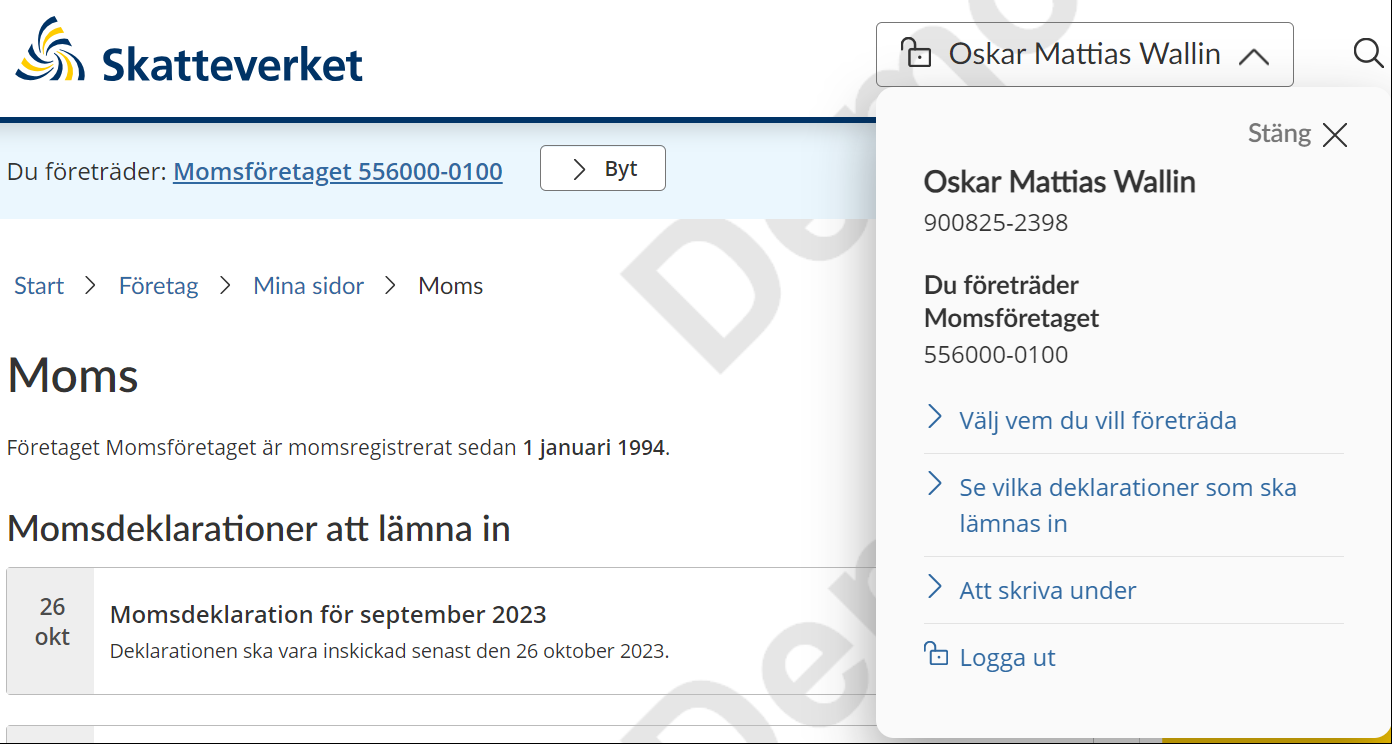
- Click your name at the top of the overview page.
- Click “Logga ut” (“Log out”).
 Leave a review (Your Europe)