How to submit an EC Sales List (recapitulative statement) via the file transfer e-service
This is a guide on how to submit an EC Sales List via the file transfer e-service.
To use the e-service for file transfer, you must first create the file to be submitted. See information below about what the file should contain, how it should be set up and a few examples of what a correct file can look like.
You can find more information on the web page about EC Sales List regarding goods and services.
EC Sales List regarding goods and services
Log in to the e-service
1. How to log in to the e-service
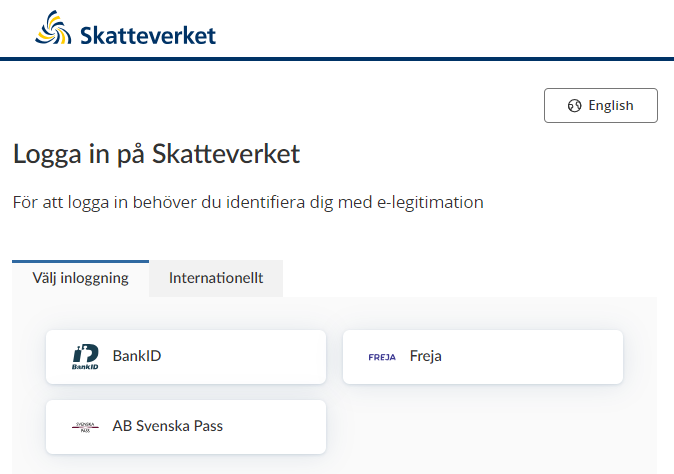
When you have selected the e-service you want to log in to, a login page will open. In the upper part of the view you can change the language to English by clicking the button ”English”. By choosing ”International” you get more alternatives for eIDs you can use to log in to the e-service. Select the login mode that suits you best by clicking it, and then proceed to identify yourself.
2. File format and file contents
The file transferred via the file transfer e-service has to be a text file delimited with semicolons. Such a file consists of a number of rows of text where the items of information are separated by semicolons. The file must only contain text and have the suffix .txt or .csv. It is possible to export the contents of an Excel file to a .csv file. An EC Sales List file must contain the information listed below. There are examples of what a file can look like at the bottom of the page.
What the file contains
In the first row you specify SKV574008 to show that the file is an EC Sales List.
Business obliged to report, reporting period, etc.
In the second row you specify, in the following order:
- The 12-digit VAT registration number of the business obliged to report the information. With or without the SE country code.
- The code for the month or quarter being reported, e.g. ”2312” for December 2023, ”2401” for January 2024, ”23-4” for the fourth quarter of 2023, or ”24-1” for the first quarter of 2024.
- The name of the person responsible for the reported information (max 35 characters).
- The phone number of the person responsible for the reported information (numerals only, with a dash after the dialling code or country code preceded by a plus sign, and no more than 17 characters)
- Email address of the person responsible for the information (voluntary).
Information about sales and transfers
Information about sales and transfers
In the third and subsequent rows, specify in the following order:
- The buyer’s VAT registration number, with the preceding country code.
- Value of supply of goods (max 12 numerals, including minus sign if any).
- Value of triangular trade (max 12 numerals, including minus sign if any).
- Value of services under the main rule (max 12 numerals, including minus sign if any).
If you are reporting a negative amount, for example when reporting crediting, insert a minus sign before the amount. If the total comes to SEK 0, you just need to specify 0. You do this even if you are going to remove a previously reported sale.
Transfers to call-off stock
For transfers to call-off stock, first state the intended buyer’s VAT number and then the event code – X for transfer, Y for repossession of goods, and Z for change of buyer. When you report a change of buyer, first state the VAT number of the new buyer, then the letter Z, and finally the VAT number of the previous intended buyer.
Note that you don’t have to specify any amounts when you report transfers to call-off stock.
For transfers to your own business in another EU country, state your own VAT number in the other EU country.
There are file examples at the bottom of the page.
Filename
You can choose any filename, provided it only contains the letters A–Z, a–z, and the numerals 0–9. We recommend choosing a name that reflects the contents of the file.
Verification of the information received
The contents of the transferred files are checked immediately in the file transfer e-service, but also later when the information is entered into the system for EC Sales List.
The check carried out by the file transfer e-service is limited to verifying that the mandatory information is included and is formally correct. These checks may produce an error message after the file has been transferred, and the file may be rejected in some cases.
Testing files
Make sure your files fulfil the Swedish Tax Agency’s format requirements by testing them. You don’t need an eID to use this service. The test service is identical to the e-service for file transfer, except that you do not need to log in. You can therefore get through the test service using this instruction for the e-service File Transfer.
Examples of files
The data shown below are examples to show what a file should look like. The content of the file you create, the VAT registration number, the period, the VAT number etc, must be adapted according to the information you should submit.
Example 1
File with information regarding value of supply, triangular trade, services and transfer to call-off-stock. The letter X at the last row indicates that the information concerns a transfer to the intended buyer with VAT number DE262875793.
SKV574008;
556000016701;2001;Per Persson;0123-45690; post@filmkopia.se
FI01409351;16400;;;
DK31283522;21700;13600;;
ESA28480514;3200;;15300;
DE262875793;X;;
Example 2
File modifying previously reported data regarding transfer to call-off stocks. The data show that goods have been returned to Sweden from the warehouse in Germany. The file must state the buyer previously intended and the letter Y.
SKV574008;
556000016701;2004;Per Persson;0123-45690; post@filmkopia.se
DE262875793;Y;;
Example 3
File with change in the intended buyer reported. First, the VAT number of the new buyer is indicated. Next, the letter Z indicates that the data refer to the change of buyer and then the previously intended buyer is indicated. In the example below, the buyer with VAT number DE283993535 has replaced the buyer with VAT number DE262875793.
SKV574008;
556000016701;2005;Per Persson;0123-45690; post@filmkopia.se
DE283993535;Z;DE262875793;
3. Upload files to the service
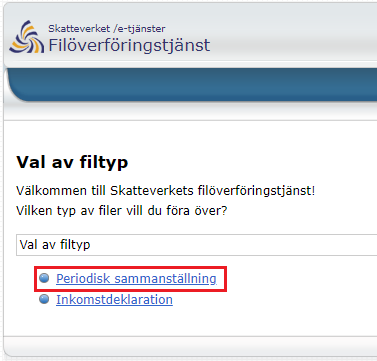
Once you have logged in you will see the start page, where you can select the type of file you wish to submit.
- Periodisk sammanställning (EC Sales List)
- Inkomstdeklaration (Income tax return)
Once you have selected the file type, you will be presented with the following options:
- Överföra filer (Transfer files) – select which files to transfer
- Kvittenslista (List of received files) – shows you which files you have transferred before
- Logga ut – (Log out)
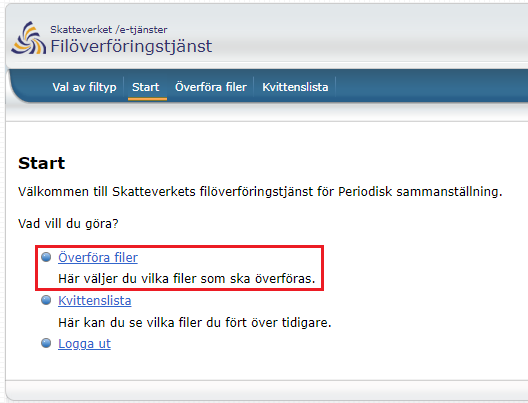
Select “Överföra filer” (Transfer files) to submit the file. It must be in the format described below, under the heading “File format and file contents”. Upload one file at a time and then transfer the file as described below.
- Click "Välj fil" ("Select file") to select the file you want to transfer.
- Click "Lägg till" ("Add") to add the file to the transfer list.
- Click "Överför" ("Transfer") to transfer the file you added to the list.
If you want to remove a file you have added to the transfer list, click X.
Once your file have been transferred you will receive a receipt confirming that the Swedish Tax Agency has received your file. The receipt includes the date and time the file was received. The receipt also states the filename of the received file, the VAT registration number of the business obliged to report the information, and the code for the month or quarter. If there are errors in the file, these will also be noted on the receipt.
Error messages you may receive in the e-service
Errors that make the system unable to receive the file
An error message will be shown in the following cases, and the received information will not be saved:
- The initial identification code is missing or incorrect. ”Identification code” here refers to the abbreviation SKV547008, which identifies the file as an EC Sales List.
- The VAT registration number of the business obliged to report the information is formally incorrect or missing.
- The code for the month or quarter is incorrect, refers to a future period, or is missing.
- The name of the contact person is missing or contains more than 35 characters.
- The phone number of the contact person is missing, incorrect (contains other characters than 0–9, - or +), or contains more than 17 characters.
- The buyer’s VAT number contains more than 14 characters, including the country code.
- One or more of the fields for amounts contains more than 12 numerals (not applicable when reporting call-off stocks).
Additionally, for information rows reporting call-off stocks, the received information will not be saved if:
- The country code in the buyer’s VAT number does not relate to another EU country.
- The buyer’s VAT number is formally wrong, e.g. the wrong number of characters or an incorrect control digit according to the country’s rules.
Errors that do not prevent the file from being received
An error message will be shown in the following cases, informing you that the information in the file has been incorrectly filled in or is missing. You then have the option of cancelling the file transfer or submitting the information despite the error message:
- The code for the month or quarter is not the expected one. This occurs e.g. when the period reported is earlier than the end of the most recent month or quarter.
- The email address for the contact person is not a formally correct email address.
Additionally, for information rows reporting the sale of goods or services, or the transfer of goods to your own business in another EU country (not to call-off stocks), you will be notified of any of the errors below. Just as with the errors above, you can choose to cancel the file transfer or submit the information despite the error message:
- The country code in the buyer’s VAT number does not relate to an EU country.
- The buyer’s VAT number is formally wrong, e.g. the wrong number of characters or an incorrect control digit according to the country’s rules.
- Doubling of rows – a VAT number occurs in more than one information row.
- Amounts are missing in an information row.
- Characters other than digits occur in any of the fields for amounts.
For further instructions (in Swedish), click the “Help” icon at the top right of the page.

4. Logging out of the e-service
To log out of the service, click on the button “Logga ut” (Log out) to the upper right of the page.
 Leave a review (Your Europe)