


How to use our e-service for file transfer
This is a guide on how to use the e-service for file transfer.
How to log in to the e-service
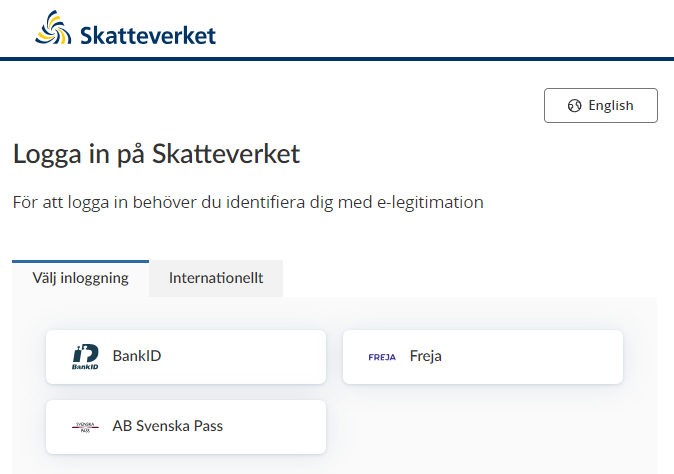
When you have selected the e-service you want to log in to, a login page will open. In the upper part of the view you can change the language to English by clicking the button ”English”. By choosing ”International” you get more alternatives for eIDs you can use to log in to the e-service. Select the login mode that suits you best by clicking it, and then proceed to identify yourself.
Upload files to the service
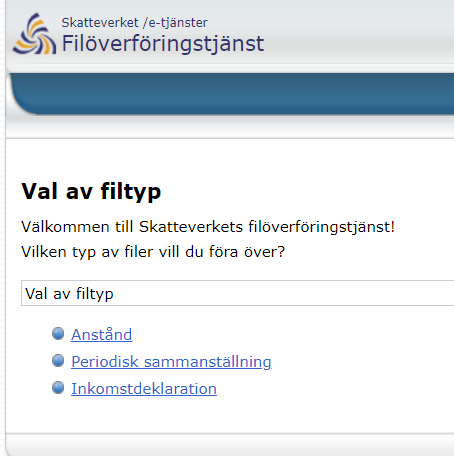
Once you have logged in you will see the start page, where you can select the type of file you wish to submit.
- Deferral (application for a tax return filing deferral (accountancy respite)
- EC Sales List (recapitulative statement)
- Income tax return
Once you have selected the file type, you will be presented with the following options:
- Transfer files – select which files to transfer
- List of received files – shows you which files you have transferred before
- Log ut
If you selected “Överföra filer” (“Transfer files”), you must submit two files, INFO.SRU and BLANKETTER.SRU. Upload one file at a time and then transfer the files as described below.
- Click "Välj fil" ("Select file") to select the first file you want to transfer.
- Click "Lägg till" ("Add") to add the file to the transfer list.
- Click "Välj fil" ("Select file") again to select the second file you want to transfer.
- Click "Lägg till" ("Add") again to add the second file to the transfer list.
- Click "Överför" ("Transfer") to transfer the files you added to the list.
If you want to remove a file you have added to the transfer list, click X
Once your files have been transferred you will receive a receipt confirming that the Swedish Tax Agency has received your files, or an error message with information about what went wrong.
Help
For further instructions (in Swedish), click the “Help” icon at the top right of the page.

Logging out of the e-service
To log out of the service, click on the button “Logga ut” (“Log out”) to the upper right of the page.